How to
How to track a competitor's price changes on Shopify
How to see a shop's real prices and spot a sale, a free weekly routine you can actually keep up, and the discounts nobody can see from outside.
Published 8 min read
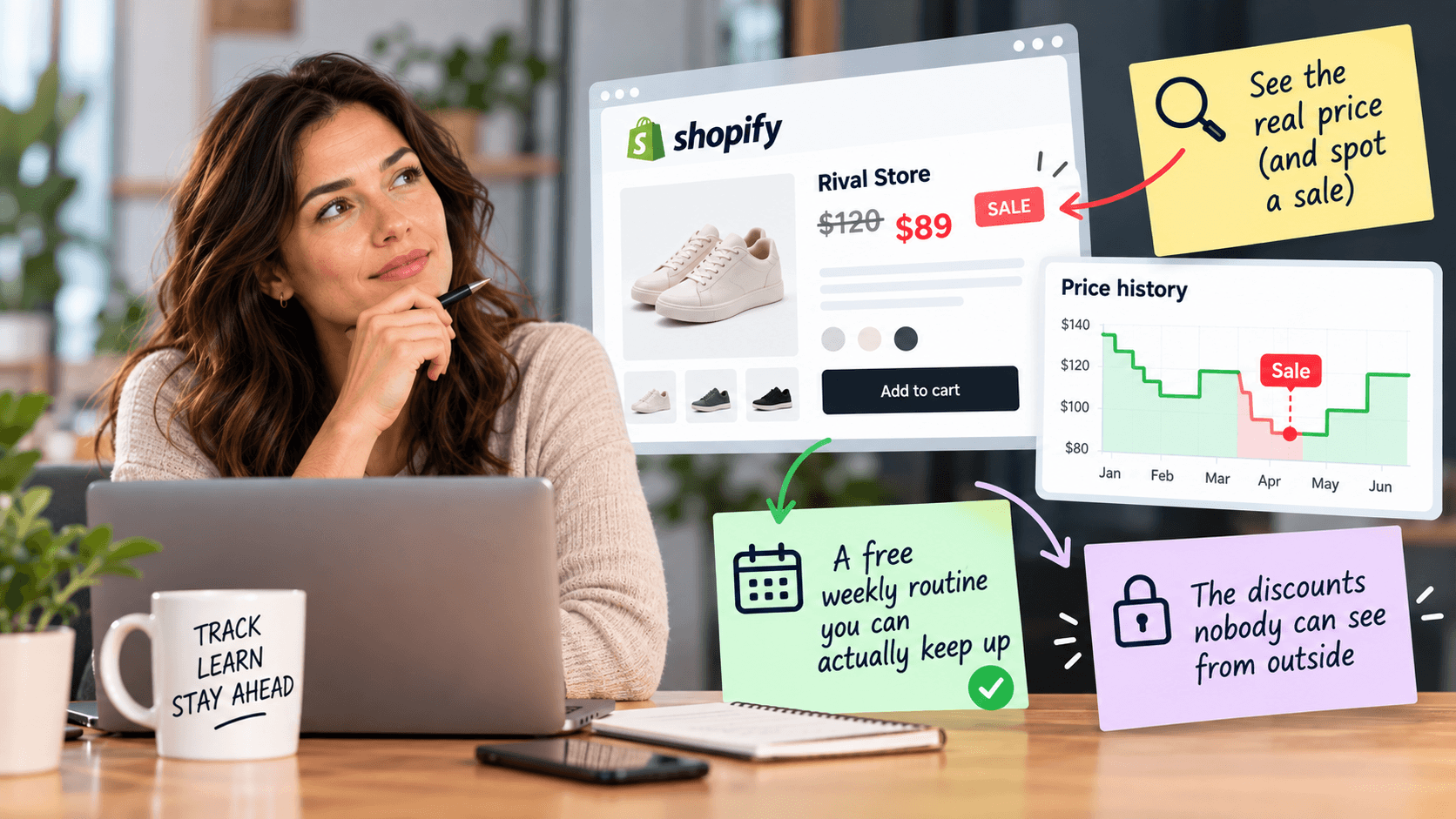
Shopify stores publish both prices: the one a shopper pays now, and the original price it is being compared against. On a product page you see that as a reduced price next to a crossed-out one. The same pair sits behind the shop's own product list, which means you can record every price in a shop in one go and compare it with last week's. Here is how to do that for free, and — more importantly — which discounts this method will never show you.
First, the thing that makes this possibleLink to this section
When a Shopify store owner puts something on sale, they do not usually change the price and delete the old one. They set a compare-at price: the original price stays on the product as a second number. Shopify's own help pages describe this — you enter the original figure in the compare-at field and the new figure in the price field, and the shop then shows both, usually with a sale badge.
That is why a sale is visible at all. A price on its own tells you what something costs. A price with a compare-at price above it tells you the shop considers it discounted, and by how much.
Method one: read one product pageLink to this section
The slowest method, and the one worth doing first because it teaches you what the shop's sales look like.
- Open the product page.
- Note the price shown, and the crossed-out price if there is one.
- Note the date. Always note the date. A price without a date is not data.
Do this for five products you actually compete with. You now have a baseline.
Method two: read the whole shop's prices at onceLink to this section
Doing step one for two hundred products is not realistic. Instead, use the product list the shop publishes itself. If the shop runs on Shopify — check first, it takes ten seconds (here is how) — add /products.json to the end of its address.
You will get a long block of text listing the shop's products. Inside each one is a list of variants, and each variant carries both a price and a compare_at_price. We checked this on a public store on 2026-09-22 and both fields were there, on every variant.
What to do with it:
- Reading it directly is unpleasant but workable for a small shop. Use your browser's find function to look for
a product you care about.
- Putting it in a spreadsheet is the real answer. Most spreadsheet programs can import this kind of text file
and split it into columns. Once it is in a sheet, you have every product, every variant, every price and every compare-at price in one place, and next week's copy sits next to it.
The one rule that makes this useful: save a dated copy each time. A single snapshot tells you today's prices. Two snapshots a week apart tell you what moved, which is the thing you actually wanted.
Method three: watch the shape, not the productsLink to this section
Chasing individual products is where most people give up. A more sustainable habit is to look at the shop's price range instead: the cheapest thing, the most expensive thing, and roughly where the middle sits.
This is more useful than it sounds. A competitor whose middle price quietly rises over three months is repositioning upmarket, and you would probably rather know that than know that one t-shirt went down by £2. It is also far less work: one number a month per competitor instead of two hundred.
A free weekly routine that people actually keep upLink to this section
Fifteen minutes, one day a week, same day each week.
- Five products, by hand. Your five most directly competing items. Price, compare-at price, date. One row each
in a sheet.
- One whole-shop snapshot per competitor, saved with the date in the file name.
- One line of notes: anything you noticed — a new banner, a sale that started, a product that vanished.
- Once a month, look back over four weeks and ask one question: what is the trend, not what happened this week.
Fifteen minutes is achievable. An hour is not, which is why most competitor-pricing spreadsheets die in month two.
The discounts you will never see this wayLink to this section
Every article about competitor price tracking should have this section, and almost none do.
Discount codes are invisible. A shop can run a 20% code through email, social media or an influencer and the listed prices never move. From outside, nothing happened.
Basket-level offers are invisible. "Buy two, get one free", "free shipping over £50", "10% off your first order" — these are applied at the basket or the checkout, not on the product. The product's price stays exactly where it was.
Prices can differ by country. Shopify's help pages describe a catalog as "a set of products with optional custom pricing that you assign to a market" — a market being a country or group of countries. Within one, a shop can set a specific price for an individual product, or move every price in the catalog by a percentage. So the price you see from your country may not be the price a shopper elsewhere sees. If you are comparing against a competitor who sells internationally, you are looking at one version of their pricing.
Customer-specific prices are invisible. Trade accounts, wholesale, loyalty tiers. None of it shows on the public page.
A missing compare-at price does not mean no discount. Some shops simply lower the price and leave the compare-at field empty. The item is cheaper; nothing signals a sale. You would only catch this by having last week's price — which is exactly why the dated snapshots matter more than any clever detection.
And a compare-at price is not audited. It is a number the shop typed in. A permanently "discounted" product with a compare-at price that never changes is a pricing style, not a sale.
Put together: what you can see is the shop's listed prices. That is genuinely useful and it is most of the picture for most shops. It is not all of it, and anyone selling you "complete" competitor price intelligence is overselling.
How to write down what you find, honestlyLink to this section
If you are putting this in front of a colleague or a client, three habits will save you:
- Date every figure. "Their mid-range sat around £40 on 22 September" is a fact. "Their mid-range is £40" has a
shelf life of days.
- Say listed price. Not "their price" — "their listed price, before any code".
- Give ranges where you are inferring. If you are saying how much of their catalogue is discounted based on one
snapshot, say roughly, and say when.
When doing it by hand stops workingLink to this section
The method above is free and it works. It fails for one boring reason: it depends on a person remembering, every week, for every competitor, and noticing the difference between this week's numbers and last week's. That is a chore, and chores get dropped.
StoreLenz is being built to remove exactly that chore: you name the shops you want watched, it looks at them on a schedule, and it tells you what changed — new products, price rises and drops, sales starting and ending, items going out of stock. Price and product tracking are part of what is being built rather than finished today, and what it does now says plainly which is which.
The rest of this series: Prices and salesLink to this section
This article is the starting point. Each of these goes deeper into one part of it:
- How to tell whether a store is really running a sale
- How to read a competitor's price bands instead of chasing products
- How long do a competitor's sales last? Measure it yourself
- What a competitor price alert should — and shouldn't — wake you up for
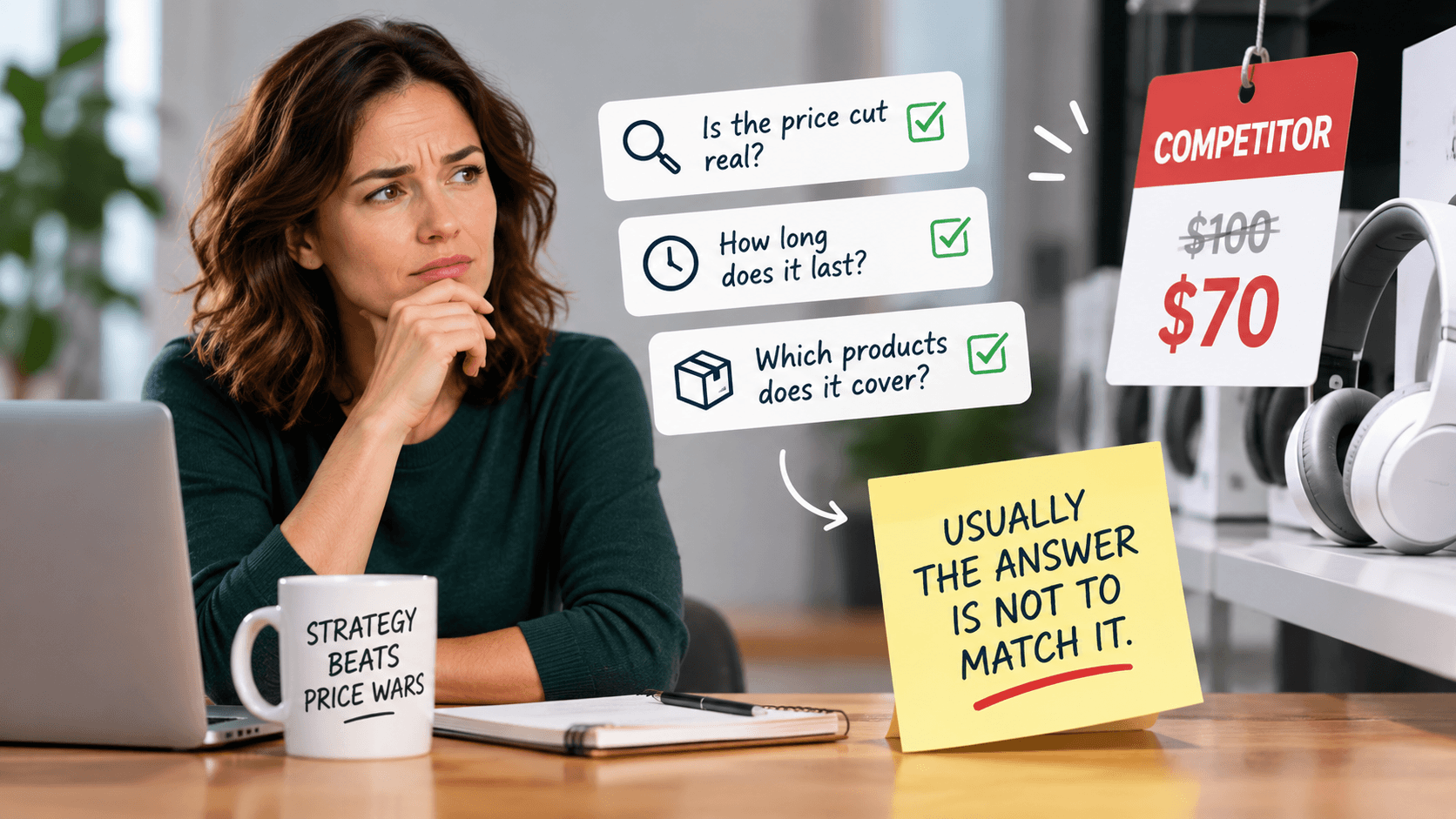
- What to do when a competitor undercuts your price
Related readingLink to this section
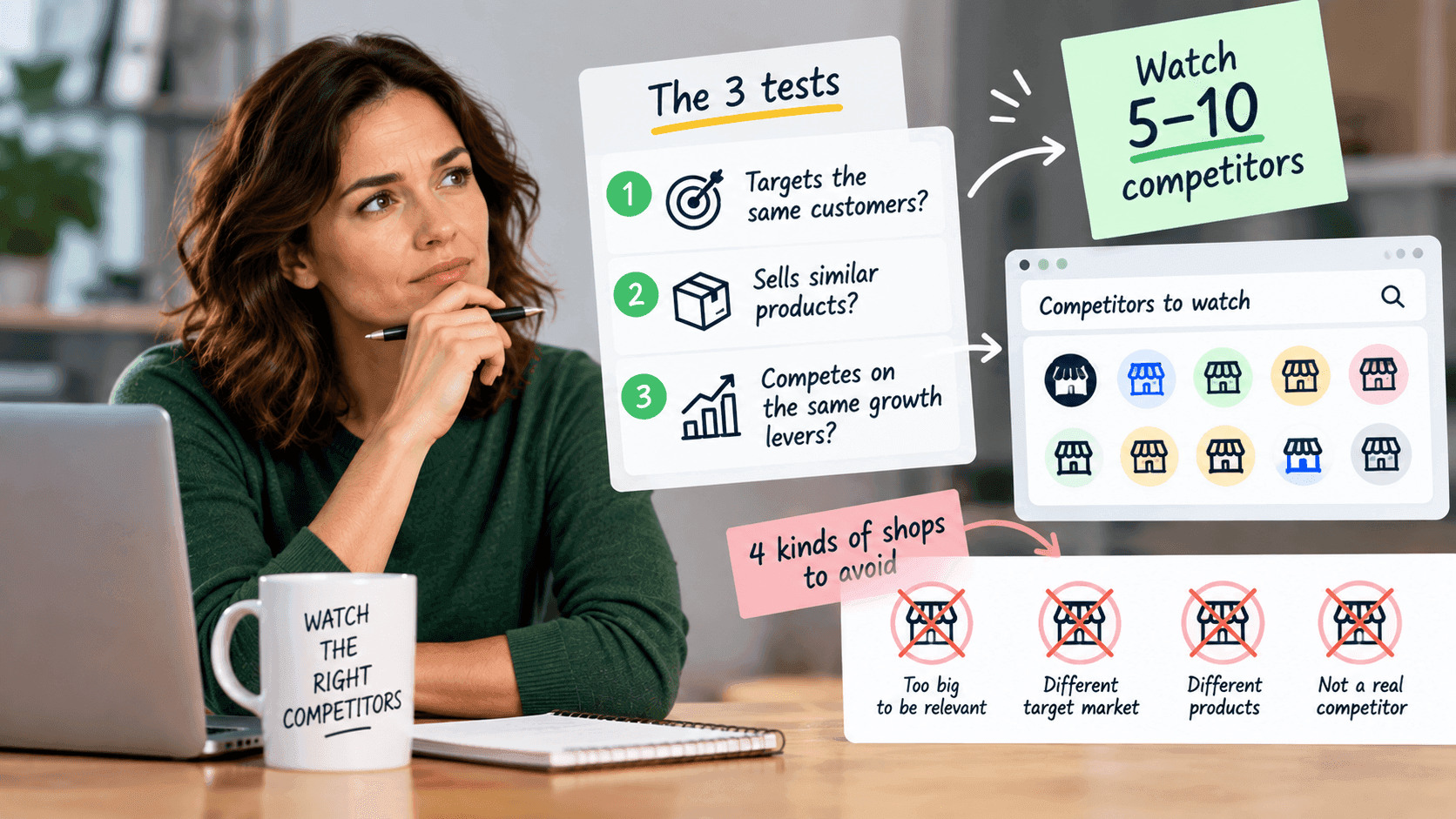
- Shopify competitor analysis: a practical guide
- How to tell if a website is built on Shopify
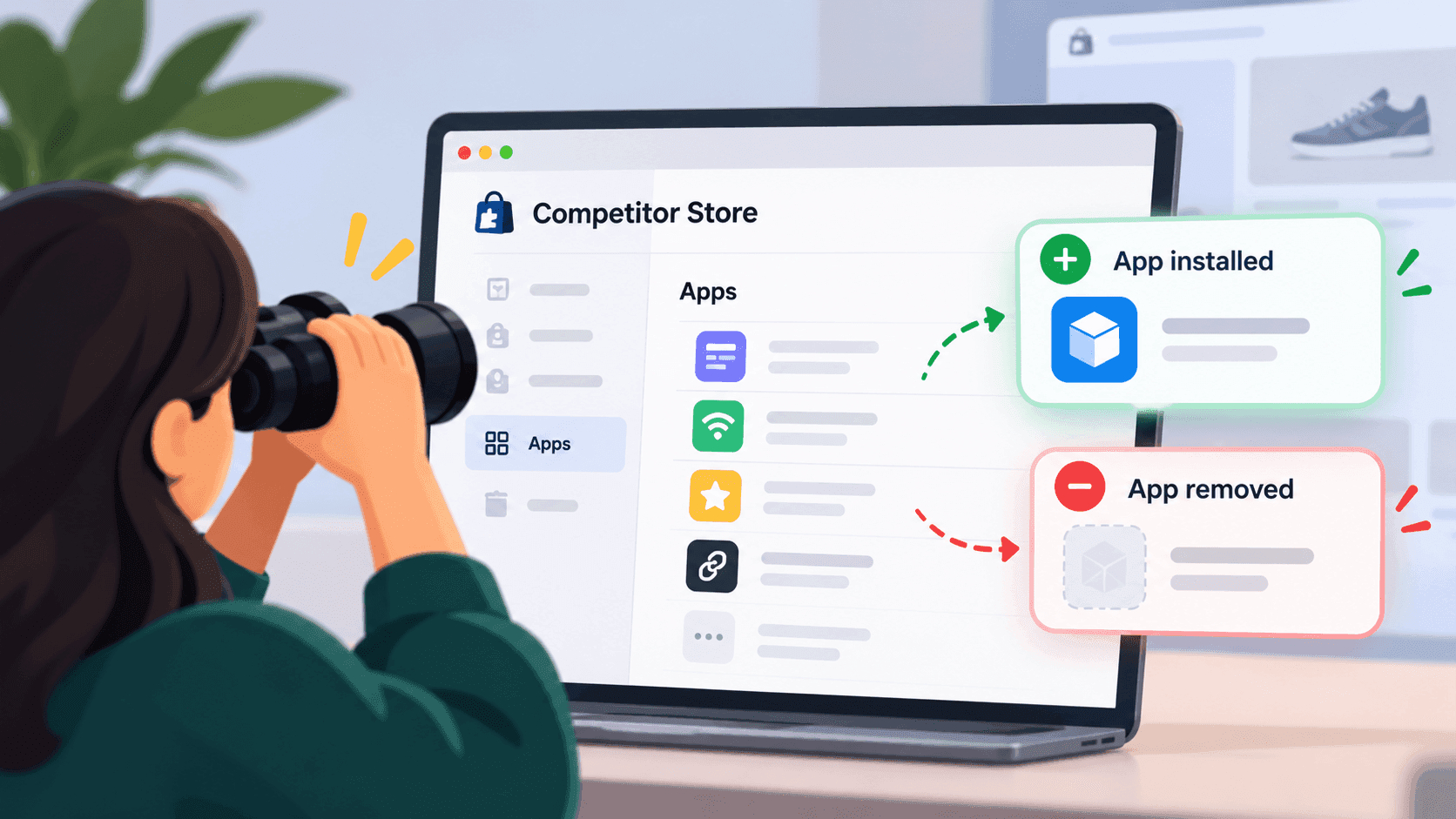
- How to find out which apps a Shopify store is using
SourcesLink to this section
- Shopify Help Center, Setting sale prices for products (set a compare-at price and the theme shows both prices with a sale badge) — https://help.shopify.com/en/manual/products/details/product-pricing/sale-pricing — read 2026-09-22
- Shopify Help Center, Creating catalogs for markets ("A catalog is a set of products with optional custom pricing that you assign to a market") — https://help.shopify.com/en/manual/markets/customizations/catalogs — read 2026-09-22
- Shopify Help Center, Set product prices by country (a specific price may be set for an individual product in a catalog, and overrides the overall price adjustment) — https://help.shopify.com/en/manual/markets/pricing/product-prices-by-country — read 2026-09-22
- Shopify Help Center, Price adjustments ("enter a percentage to increase or decrease all prices in the catalog") — https://help.shopify.com/en/manual/markets/pricing/price-adjustments — read 2026-09-22
- Our own check of a public store's
/products.json, confirmingpriceandcompare_at_priceon each variant — 2026-09-22
Written by Soneth Martins
shopify store manager